Connect Funkel to Claude with MCP
Use the MCP server URL and a personal access token to let Claude inspect, draft, and prepare outreach from your Funkel workspace.
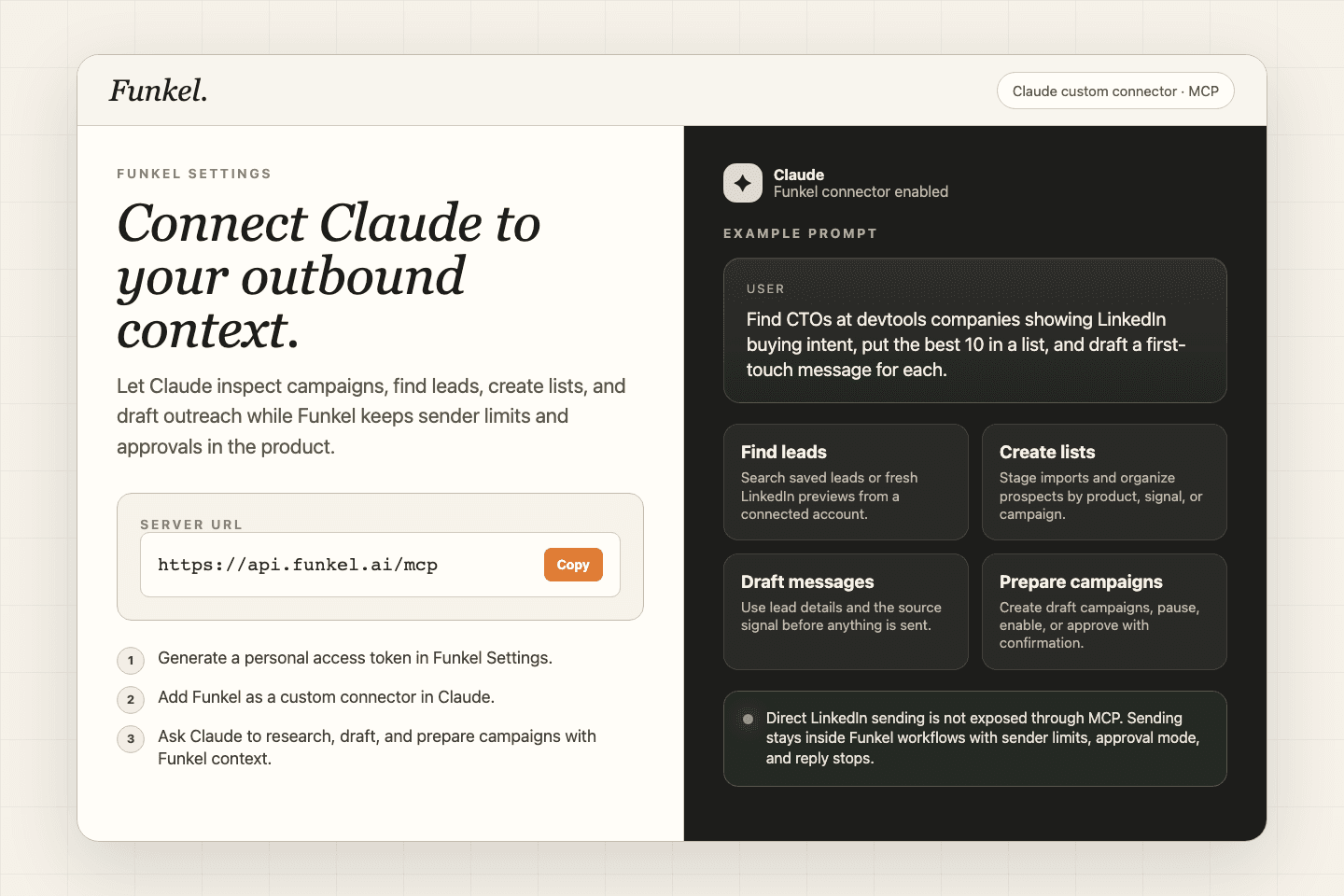
Funkel exposes a Model Context Protocol (MCP) server so Claude can read your workspace context and prepare outreach work for review. Use it when you want Claude to inspect campaigns, find leads, create lists, draft messages, or prepare campaign changes from your Funkel data.
Before you start
- A Funkel account with at least one workspace or app.
- A Claude plan or workspace that supports custom connectors.
- A personal access token from Funkel Settings.
1. Copy your MCP server URL
Open Settings → MCP. Copy the Server URLshown in the product. In production, it is usually https://api.funkel.ai/mcp, but copying it from Settings is the safest option.
2. Create a personal access token
Open Settings → Security and generate a personal access token. Treat this like a password. Use a token made specifically for Claude so you can revoke it later without affecting other integrations.
Do not paste the token into a normal Claude message. Use it only in the connector authentication flow.
3. Add Funkel as a Claude connector
- Open Claude.
- Open your profile menu, then Settings.
- Go to Connectors.
- Click Add custom connector.
- Paste the Funkel MCP server URL.
- Authenticate with the Funkel personal access token when prompted.
4. Enable Funkel in a conversation
Start a Claude conversation, click + → Connectors, and toggle Funkel on. Claude can now call the Funkel tools available to your token.
Try a safe first prompt
List my Funkel apps and campaigns. Then pick one campaign and summarize:
- the target audience
- current status
- recent reply performance
- any obvious setup risk
If that works, ask Claude to inspect a lead before drafting:
Open the lead named Mira Jensen, explain why Funkel found them, then draft a short LinkedIn first-touch message using the reason Funkel found them.What Claude can do through Funkel MCP
- List apps, agents, campaigns, analytics, and saved leads.
- Open full lead details before drafting.
- Search saved leads and fresh LinkedIn lead previews.
- Create lead lists and import selected search results after confirmation.
- Draft personalized messages from lead and campaign context.
- Draft buyer profile edits, create draft campaigns, and create agents.
- Pause or enable campaigns and agents through guarded actions.
- Approve discovered leads when you explicitly confirm the action.
What Claude cannot do through MCP
Claude cannot send LinkedIn messages directly through Funkel MCP. That is intentional. Sending stays inside Funkel campaigns, where sender limits, approval mode, workflow timing, and pause rules are visible.
Troubleshooting
- Claude says the connector is unavailable. Confirm the server URL was copied from Settings → MCP and has no extra space.
- Authentication fails. Create a new personal access token in Settings → Security and update the connector.
- Claude sees the wrong workspace. Ask Claude to list apps first, then reference the specific app or campaign you want it to use.